Do You Need A Graphics Tablet for Landscape Photography?
Should You Use a Graphics Tablet for Photo Editing?
The answer to this question is dependent on a couple of variables: where you are in your photography journey and how much you edit your photos.
We can then add a few more variables to those two — what kind of edits are you making, and what are you trying to achieve in your photos?
I am coming at this from the perspective of someone who edited purely using a mouse (and sometimes a trackpad), and then got hold of a graphics tablet, which completely changed my workflow and my edits.
TL;DR: Are Graphics Tablets Worth It for Photographers?
A graphics tablet isn’t essential for photo editing, but for the right photographer it can be a genuine workflow upgrade. If you regularly use local adjustments, dodging and burning, or detailed masking, a tablet offers greater accuracy, speed, and creative control than a mouse. For beginners, it’s better to focus on learning your editing software first, but for intermediate and advanced photographers, a graphics tablet can be a worthwhile investment.
Graphics Tablet vs Mouse for Photo Editing: What’s the Difference?
For me, since you asked, it has been about three things: accuracy, speed, and creativity. I did some research before making a purchase to ensure I was buying the right one for me, and I ended up opting for the Wacom PTH-660-N Intuos Pro with the Pro Pen Stylus 2. This has since been superseded by the Wacom Intuos Pro Medium with Wacom Pro Pen 3.
Ultimately, you’re swapping your mouse for a stylus and tablet, and using these alongside your keyboard to navigate.
It means that, as well as navigating your way around your software with the pen, you’re also using your software as “virtual paper” — something you can draw on, sketch on, and “click” on to make the adjustments you want in your images.
One of the things this really sped up for me (and it’s even quicker now that editing software is streets ahead of where it was even three years ago) was removing small distractions from images. When I lived in London and shot street portraits, I would spend a lot of time removing blobs of chewing gum from images, and it would take a very long time. Having the stylus meant I could be done in a few minutes. I don’t do this as much now as a landscape photographer in the Lake District, but this is the speed I mentioned at the start of the blog.
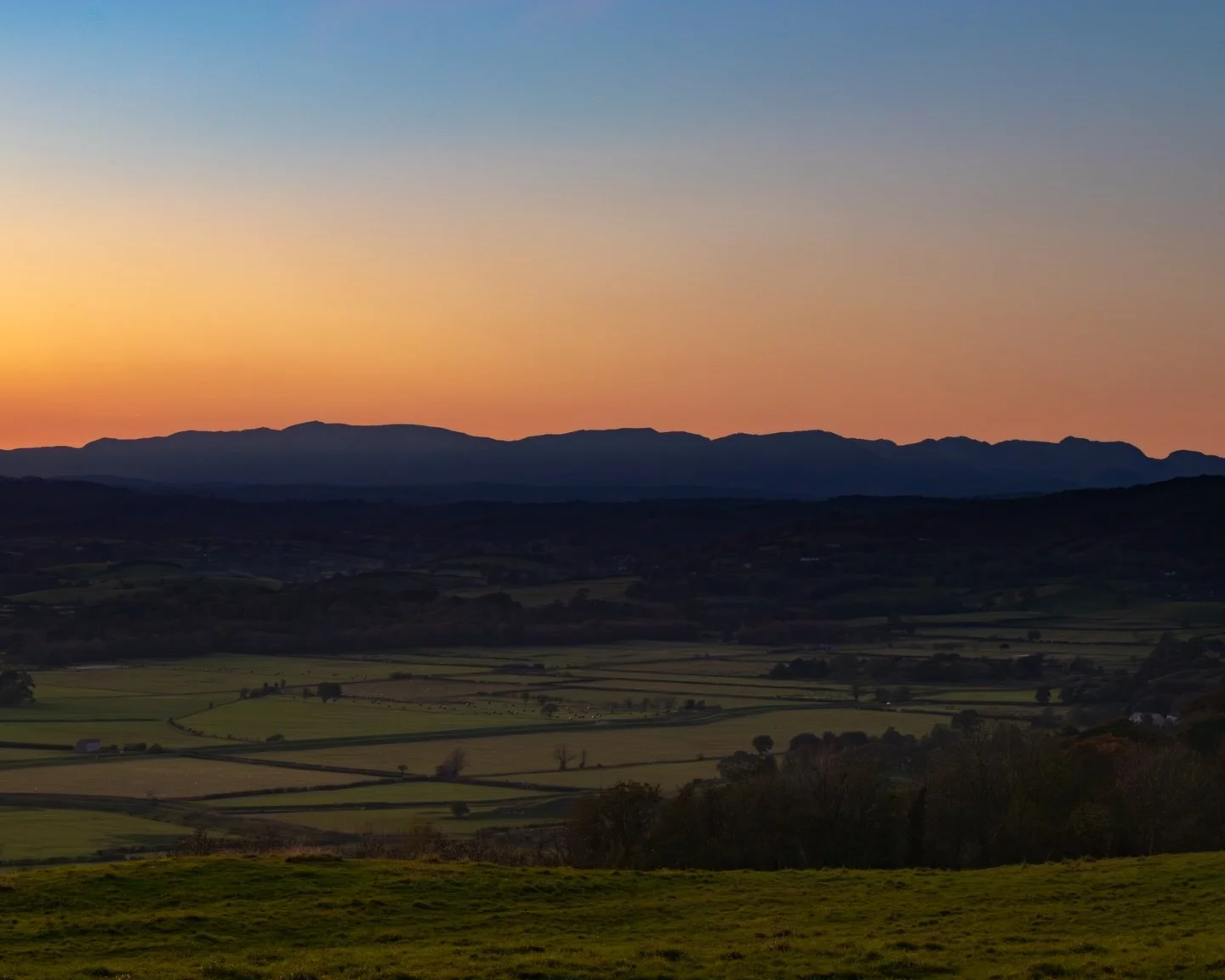
As a landscape photographer, the accuracy aspect really comes into play. Having a stylus and tablet allows me to accurately “paint in” things like exposure and saturation exactly where I want them, rather than being limited by mask edges or the occasional jolt of a mouse. It feels much more like working with paint or a pencil. If you’re using pressure sensitivity, you also gain an extra layer of creative control. Once you’re well practised with a tablet, you’ll be surprised how fluent your adjustments can become.
I have to admit that the masking tools in Lightroom have improved massively over the last couple of years, especially with the addition of AI-powered masking. Even so, I still find that using a stylus allows me to place adjustments exactly where I want them and accurately control how much I’m doing. If you’re doing a lot of dodging and burning, editing landscape photos with a graphics tablet can be an absolute dream.




Mouse vs Graphics Tablet vs AI Masking in Lightroom and Photoshop
Modern editing software has come a long way, particularly with the introduction of AI-powered masking tools in applications like Lightroom and Photoshop. Subject selection, sky masks, and automatic object detection can now handle many adjustments quickly and with impressive accuracy.
A mouse remains perfectly capable for general editing tasks and works well for global adjustments and simple local edits. It’s familiar, precise enough for most uses, and requires no additional setup.
A graphics tablet, however, excels when you want fine control. Painting exposure, contrast, or colour exactly where you want it — and controlling how strongly those adjustments are applied — feels far more natural with a stylus. Even with AI masks, a tablet is often the best tool for refining edges, blending transitions, and making subtle, creative tweaks.
AI masking is incredibly powerful and continues to improve, but it works best as a starting point rather than a complete solution. Combining AI masks with a graphics tablet allows you to work faster while retaining creative control, rather than relying entirely on automated selections.
Is There a Learning Curve When Using a Graphics Tablet?
Yes, but it’s a brief one. For me, it was mostly about getting used to how it feels. It can be quite an alien sensation at first — moving your hand around a tablet and seeing the cursor move on the screen. For many of us, this will be a completely new way of interacting with a computer or piece of software.
One thing you’ll need to set up and experiment with is the active area of the tablet and how much of your screen that area represents. For example, I have my tablet set so that I use roughly a quarter of its surface area, which maps to my entire screen. This means that to move my cursor from the top left to the bottom right of the screen, I only need to move the pen tip around 4–5 inches. My hand stays in roughly the same place.
By contrast, if you use the full tablet area, the same movement would require the pen to travel across the entire tablet (around 10 inches in my case). For me, that’s too much movement, and I find working in a smaller area both easier and more accurate.
The learning curve isn’t steep in terms of time investment — it won’t take weeks. After about 30 minutes, you’ll have a good feel for it and may already be wondering how you ever edited without one.
What Photo Editing Software Works with a Graphics Tablet?
More than you might expect, including programmes outside the creative sphere. I mainly use mine with the Adobe Creative Suite (largely Lightroom and Photoshop) and Capture One.
There’s a wide range of software that supports graphics tablets, but it’s always worth checking the manufacturer’s website to ensure compatibility with your specific needs.
You also have two main connectivity options: USB-C or wireless (via Bluetooth). Connectivity is straightforward and generally very stable via bluetooth but I do favour the USB-C connection as for me, it feels a bit less laggy.
Can You Customise a Graphics Tablet for Editing?
Oh yes. Wacom tablets come with Wacom Centre, which allows you to customise the tablet alongside your Mac or PC system settings.
This is where you set the active area of your tablet and assign functions to the eight programmable buttons, the centre button, and the touch wheel.
For example, I have my buttons mapped to select different tools in Lightroom and Photoshop, the centre button launches a menu, and I use the touch wheel to control zoom. There’s also a button on the side of the stylus, which I’ve set to “undo”.
The software also supports automatic switching between applications. If your active window changes from Photoshop to Lightroom, the tablet recognises this and switches to the relevant shortcuts automatically. It’s seamless, and you rarely have to think about it once it’s set up.
Which Graphics Tablet Should Photographers Buy?
I can’t answer this definitively for you. I chose Wacom because it was a brand I already knew and trusted, and because their tablets were on display at my local camera shop, allowing me to try them before buying.
There are also options from Xencelabs, Ugee, XPPen, and Huion. I can’t vouch for these personally, as I haven’t used them, so I’d recommend doing your research, reading reviews, and making sure whatever you buy fits your needs and workflow.
Who Should Use a Graphics Tablet for Photo Editing?
If you’re new to landscape photography, this shouldn’t be at the top of your shopping list. Spend your time learning your editing software, understanding how to use your camera to get the image as close as possible in-camera, and investing in things like lenses or other tools that will benefit you more at an early stage.
If you’re reading this and parts of it don’t make sense, take the time to learn what those things mean and revisit the idea of a graphics tablet later, once you’re more confident and know what you want to achieve.
I’d recommend a graphics tablet to photographers at an intermediate or advanced level who understand their software and have a clear idea of how they want to work. If you regularly paint in exposure, contrast, or other local adjustments and find a mouse limiting, a tablet could be a very worthwhile investment.
Pros and Cons of Using a Graphics Tablet for Photo Editing
Pros
Improved accuracy when painting masks and local adjustments
Faster workflow for retouching and removing small distractions
More natural, intuitive control that feels closer to drawing or painting
Pressure sensitivity allows for more subtle and creative adjustments
Better ergonomics for longer editing sessions compared to extended mouse use
Cons
Initial learning curve, especially if you’ve only ever used a mouse
Desk space required, particularly with medium or large tablets
Additional cost, which may not be justified for casual editing
Not essential for beginners, who may benefit more from mastering software basics first
Conclusion: Is a Graphics Tablet Worth It for Photo Editing?
A graphics tablet won’t suddenly make your photos better, but it can change how you work on them. For photographers who regularly use local adjustments, masking, and retouching, a tablet offers a more accurate, fluid, and enjoyable way to edit — one that often feels closer to drawing or painting than clicking and dragging with a mouse.
That said, it’s not a requirement. If you’re early in your photography journey, your time and money are better spent learning your editing software and understanding what you want to achieve with your images. But if you’re comfortable with your workflow and find yourself limited by a mouse, a graphics tablet can be a meaningful upgrade that speeds things up and gives you greater creative control.
Like most tools in photography, its value comes down to how and why you use it. Used intentionally, a graphics tablet can quietly become one of the most useful parts of your editing setup.
Thanks for reading, I hope you found this useful/insightful! If you’d like to be the first hear about new blogs and reviews and to keep up to date with what I am doing and see my latest work, please consider signing up to the mailing list via the contact page.
If you’d like to support the blog and help me keep producing Lake District photography content, honest gear reviews and regular website updates, you can do so via my Buy Me a Coffee page. Keeping everything running smoothly takes time, and your support makes a real difference. Thank you.