In this Logitech MX Creative Console review, I take a hands-on look at whether this highly customisable control surface can genuinely speed up editing and streamline creative workflows and consider if this is a worthwhile upgrade for photographers and content creators.
This blog contains Amazon affiliate links - if you click one of these links and then make a qualifying purchase, I may receive a small kick back and this really helps to support the blog and the best of it is that it doesn’t cost you a single penny extra!
You can check current pricing here if you’re interested.
TL;DR
The Logitech MX Creative Console is a thoughtfully designed, highly customisable control surface that genuinely speeds up creative workflows making it an excellent investment for photographers, designers, and content creators looking to work smarter, not harder
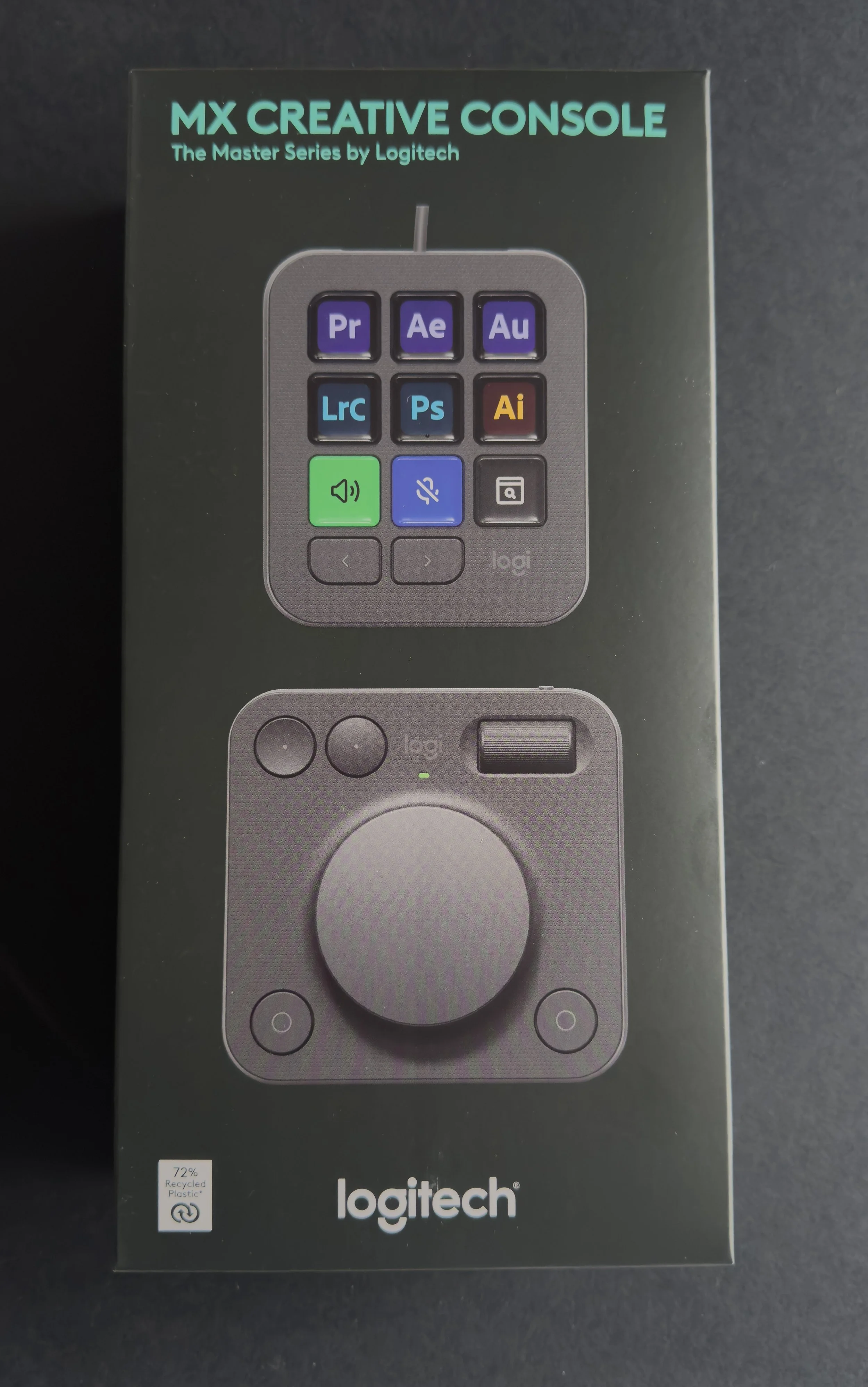
Why Choose the Logitech MX Creative Console?
I am someone who likes to do his research because I like to get things right the first time, especially when I am spending money (or birthday vouchers!). There is a lot of hype around other macro-key products, particularly the Tour Box Elite and the longer standing Elgato Stream deck.
Alternatives to the MX Creative Console
I quickly ruled out the Stream Deck as it doesn’t have a scrub wheel and to buy something to compliment it means spending more money and another decision to find something that works and that I like.
The Tour Box was a serious consideration for me, the reviews are good, it looks smart and it works well with DaVinci reosolve, and it’s that last part that made the decision for me. Everyone online is telling me how good it is to edit in DaVinci using this, but I don’t edit enough video, let alone in DaVinci to make this worthwhile.
The MX Creative console however, works across most of the Adobe Creative Suite (it’s really strong in Photoshop and Lightroom) and is context aware so the buttons change depending on the software that you have open. It can even control aspects of your main operating system, which I find really handy.
First Impressions and Build Quality
What’s in The Box?
In the box, you get your keypad, your dialpad, a USB cable (because the keypad doesn’t connect via bluetooth, so I would like to see that improved in the future, though it does mean that there is no latency) and a stand which props up the keypad so that it rests at a good angle for you to work with. The underside of both of these components has some material stuck to it in order to create some friction to stop it sliding all over your desk. Mine are both placed on a large desk pad so I’m not too concerned about this, but I have tried it on a bare surface and it seems to hold up well.
Build Quality , Design & aesthetics
Straight out of the box you will notice that this thing is light, but that isn’t reflected in the quality of the materials, which feel solid enough and like they will be able to stand up to being sat on my desk for the next few years. That said, if I do want to take them anywhere with me, I would probably buy a case to transport them in. The wheel is made of metal and feels good under than hand.
A quick word on the unboxing, just because people like to know about that kind of thing: It was a solid 5 out of 10 in terms of excitement, it’s certainly not the experience you get from something like an Apple product. I will however point out that there is nothing in the packaging that can’t be recycled, so a full 10/10 on that front.
When it’s plugged in, the control buttons are bright and pretty vibrant - they look great on the desk. The buttons are soft and feel pretty satisfying to press, and that’s always nice.
You’ll also notice that there is a lot of similarity with the now discontinued Loupedeck line of products and suspect that this is no accident given that Logitech acquired Loupedeck in 2023 and sales from this brand were discontinued in March ‘25.
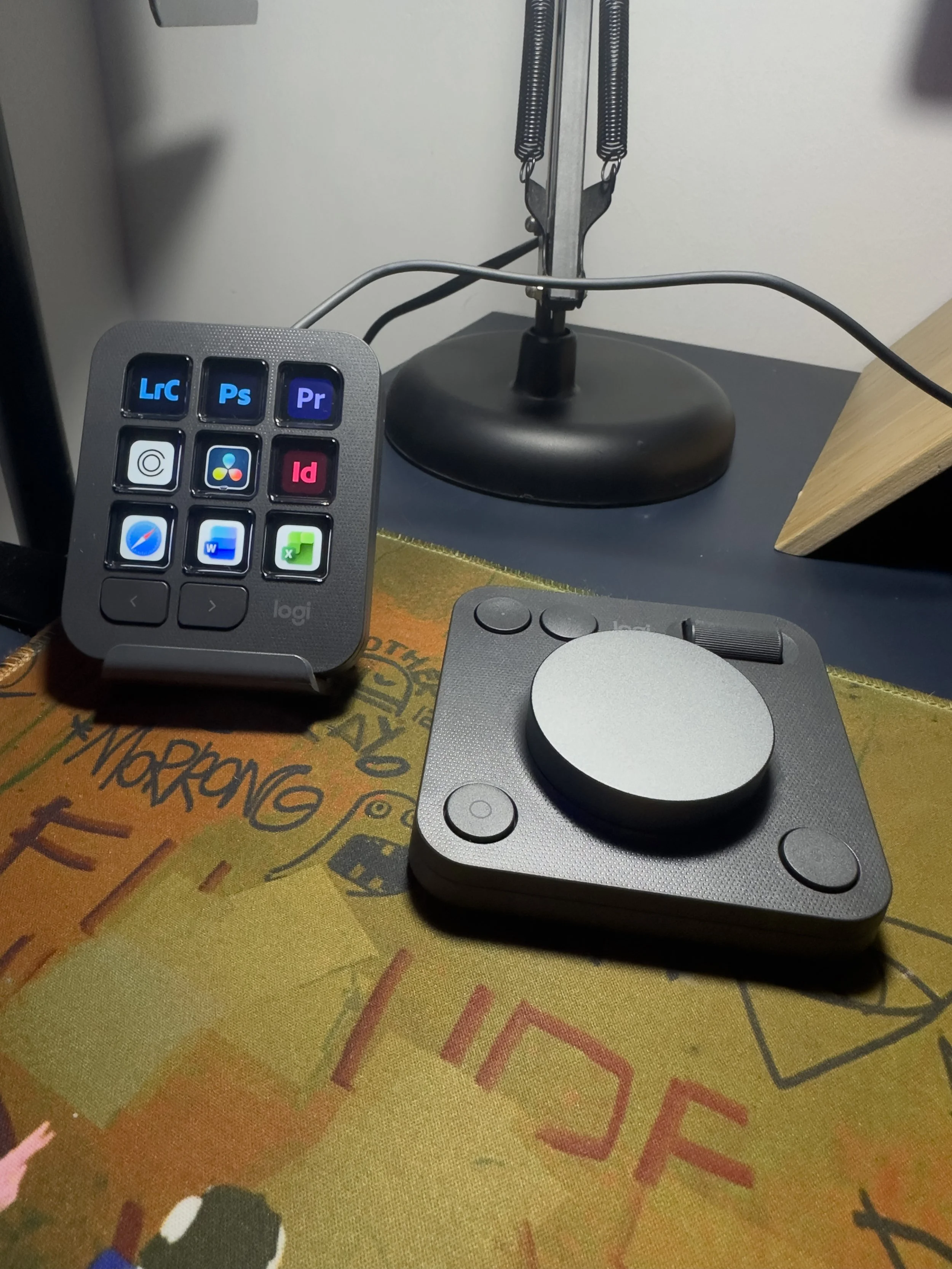
The console comes in two colours, graphite and pale grey. I have opted for the graphite for two reasons: Firstly, I have the MX Keys S, which are also a dark grey/graphite colour, as well as the MX Mouse 4 which is the same colour so aesthetically, it looks good and all ties together (not quite with my blue Mac, but that’s another story). Secondly, in my experience, light grey and white things that you are constantly touching often ended up looking quite grubby and I want them to carry looking good for longer.
Connection and Set-Up
The initial set-up is really easy and the LogiOptions+ software that comes with it is really intuitive and actually quite enjoyable to use.
The setup process is completely guided and you’ll need to grant a couple of permissions (I’m using a Mac so if you’re on a Windows machine then your experience here may differ slightly). The ‘easy to set up Logitech MX Creative Console’ would be a good (if slightly unimaginative) sales line for them.
Logi Options+ software setup
The software does a good job of detecting what you have installed on your computer and then you just need to select which ones you want to have shortcuts installed for. Each piece of software comes with some pre installed shortcuts/actions to get you started and this means that you pretty much can straight into playing with it.
Page one of your keypad is the system actions page, and this comes preloaded with things like volume controls, open Finder and music controls, and honestly, it’s really good.
I have added some more actions to the next available page to do things like cmd+tab and to close windows quickly. I have also added some buttons to open the apps that I use the most, so that’s all of my photo and video apps as well as things like Word and Mail. The other thing that I have done is to set up some buttons to open websites that I use frequently, like Google, Amazon, YouTube and of course, Squarespace!
We also need to talk about the contextual awareness of the whole system. It’s awesome. It’s quick and it’s intuitive. As soon as I switch from one app to the next, the pages have changed and my buttons are ready to go. Each of the Adobe apps has its own set of pre-installed shortcuts. Logitech have done a great job of picking the ones that they know we will need in each of the apps, I haven’t had to change much, but I do know that I can add anything I find isn’t there really quickly through the LogiOptions+ app.
The dialpad (or as I keep calling it, the wheel), is just as easy to set up. It’s far less visual than the keypad, and that’s ok. I think the two off set each other really well and having too much visual output on the dialpad would be information overload for a lot of people.
The main jog wheel feels really good under your fingers and moves smoothly, though I think one improvement I would like to see in future updates of the hardware is for it to have some kind of haptic feedback, it moves very smoothly, but that extra feedback would really complete the experience.
The same is true of the vertical scroll wheel, it feels good and works well but it would be much better with some feedback through the fingers. There are also four buttons on here, all of them fully customisable within each of the apps that you want you to set it up for.
Real World Usage: Editing Workflow Performance
I don’t think it would be going too far for me to say that this has been game changer for me. I have made some small changes to layouts, just to put the buttons that I use the most often in the right places for me, and I have added things that I use that weren’t programmed-in out of the box and I think I have got it just where I want it.
For example, editing a landscape image in Lightroom is now much quicker because I have my tools on my desk in front of me, I can use the dialpad to increase and decrease the value of sliders and I can bring tools and masks up really quickly with the touch of a button, rather than having to use several clicks.
I’m not just using it for anything photography related, but I am doing a lot of the day to stuff on my Mac from this, everything for launching websites to closing windows.
The MX Creative Console has sped up my workflow across all of the apps that I use, but the changes it has made for me in my creative apps are massive. I am much quicker and, dare I say it, better organised as a result of this; not just on my computer, but also I am more minded to keep my desk much clearer!
The contextual changes you will see are instant. For example, when I click to open Lightroom, the contextual awareness picks this up straight away and switches my keypad to the Lightroom icons. Pressing the buttons is instant as well, there’s no lag and the tool I have selected is ready to use. I think that this is partly down to the fact it is plugged into my computer, that being said, I haven’t had any noticeable lag with the dialpad, which is connected via Bluetooth.
The one thing I have noticed, other than what I have already mentioned is that the large wheel on the dialpad is touch sensitive, which is nice, but if you inadvertently catch this with your hand as you move around your desk then you can end up changing things that you didn’t want or need to.
How I use it in my own workflow
I have been thinking about how to speak about this, because it’s had a big impact on the way I am working and I only expect this to get bigger as I use it more.
But what has it actually done for me? It’s removed the need to memorise and recall shortcuts, and some the things I do regularly I am now building muscle memory for. I need a brush in Photoshop? I have a button for that now. Want to put in a radial or linear gradient? I have a button for that too. I can’t make my mind up if this is making me quicker or lazier. Perhaps both.
It has relieved the need for some of the longer shortcuts that I would use, which is nice, so now instead of cmd+shift+r for reseting an image, I have just one button to press. It also means that I am using my graphics pab slightly differently - the buttons I have on there are now largely redundant.
My graphics tablet’s buttons have always been a bit of a bit of a bugbear of mine, they are largely just in the way and I didn’t really use them. Having the MX Creative Console means that I no longer have to guess what I set these buttons up to do, because I can see the shortcuts in front of me. If you’re looking for a graphics tablet and the MX console isn’t for you then, then I’d recommend something like the Xencelabs Combo Medium.
Who Should Buy One?
Photographers (Lightroom/Photoshop users)
Designers (Photoshop/Illustrator)
Video editors (Premiere Pro/DaVinci users)
Productivity-focused users
This is going to appeal to a lot of people, especially those who want to streamline their work flow. Those of you who are willing to spend the time customising it so that it wors the way that you work will get the most of it - one of the biggest plusses for this is its customisability.
It works equally well across Lightroom, Photoshop and Premiere Pro. I have used it with some success in Davinci, but I don’t know this software well enough to give anything meaningful here other than ‘it works’ and it does the basic stuff I need it to.
If you’re looking to speed up your editing workflow and reduce reliance on keyboard shortcuts, this is one of the most effective upgrades you can make.
Pros and Cons
Pros
Fully customisable means that it will be suited to all workflows.
Adpative/Context aware so keys change with your workflow and you don’t need to adjust.
The tactile dial gives you some real precision control
Two-part modular design means you can find the ideal placement for you on your desk.
Is being regularly updated with more support
The Logi Options+ software is intuitive and make set-up much easier.
Not ‘laggy’ with the inputs and responsiveness
Cons
Wired connectivity for the keypad means another cable trailing across your desk and another USB port used up.
Setup and customisation can take a while, but worth it if you want to get the most out of it.
If you already fly around the shortcuts, this might not be much of a benefit.
Nine keys isn’t as many as some of the competitors, so you spend time moving through the pages.
It’s quite lightweight so doesn’t feel as premium in the hand as some of its other competitors.
Jog wheel could be improve by adding a notch/groove for a finger to sit in.
My Tips for Getting the Most out the MX Creative Console
Spend time setting it up in the way that you want.
Put the shortcuts you use or will need the most on the first couple of pages to save scrolling.
Think about your desk placement and get it somewhere comfortable.
Should You Buy It?
In a word, yes. Especially if you fit into one the categories I have mentioned above. This is a truly great piece of kit and I am constantly finding new ways do things with it, its made me much more productive and let’s be honest, who doesn’t love a button?
Where to buy the MX Creative Console.
The MX Creative Console is currently available on Amazon, I paid £175.04 on 2nd April 2026.
You can also buy straight from Logitech, who at the time of writing have some good deals avaialable so it’s worth a look there too.
Other retailers are available but if I try to list them all here it’s going to be a big list!
At around £175, it’s not cheap—but for something that you’ll use every single day, it’s an investment that quickly pays for itself in time saved.
Final Thoughts
This is great piece of kit that I have only owned for a week or so and it is already becoming an integral part of my workflow, which I am not sure what I would have been doing without. Paired with the MX Key S and MX Mouse it’s really helped my productivity. The mapping is great and means that you can really make each of these things your own, and make them work how you want them to work and think that this is one of the MX Console’s strengths.
Specs
Controls
- 9 LCD keys with dynamic app-aware icons
- Precision dial for fine adjustments
- Custom layouts for workflow optimisation
- Multi-page controls for extended functionality
Software
- Logi Options+ control platform
- Smart Actions (multi-step automation)
- Auto-switching profiles per application
- Plugin ecosystem for creative apps
Connectivity
- Bluetooth Low Energy
- USB-C charging and connection
- Up to 10m wireless range
- Rechargeable battery (dial module)
Compatibility
- Windows 10+ and macOS 12+
- Adobe Creative Cloud
- DaVinci Resolve & Final Cut Pro
- Affinity Suite and Figma
All details correct as of 02/04/2026, tested using Apple Mac M1.