My Photography Blog
Welcome to the Chris Kendrick Photography Blog, where I share the stories, challenges and inspirations behind shooting Lake District landscapes and working as a Cumbria-based photographer. Alongside behind-the-scenes reflections from the fells and lakes, you'll also find honest photography gear reviews, covering the cameras, lenses and accessories that genuinely perform in real Lake District conditions. Whether you’re passionate about landscape photography, exploring Cumbria’s scenery, building your kit, or simply curious about the craft, there’s something here for you.
Some posts include affiliate links; thank you if you choose to support the blog through a qualifying purchase. If there’s a topic or piece of gear you’d like me to cover, let me know. Enjoy exploring!
Enjoy!
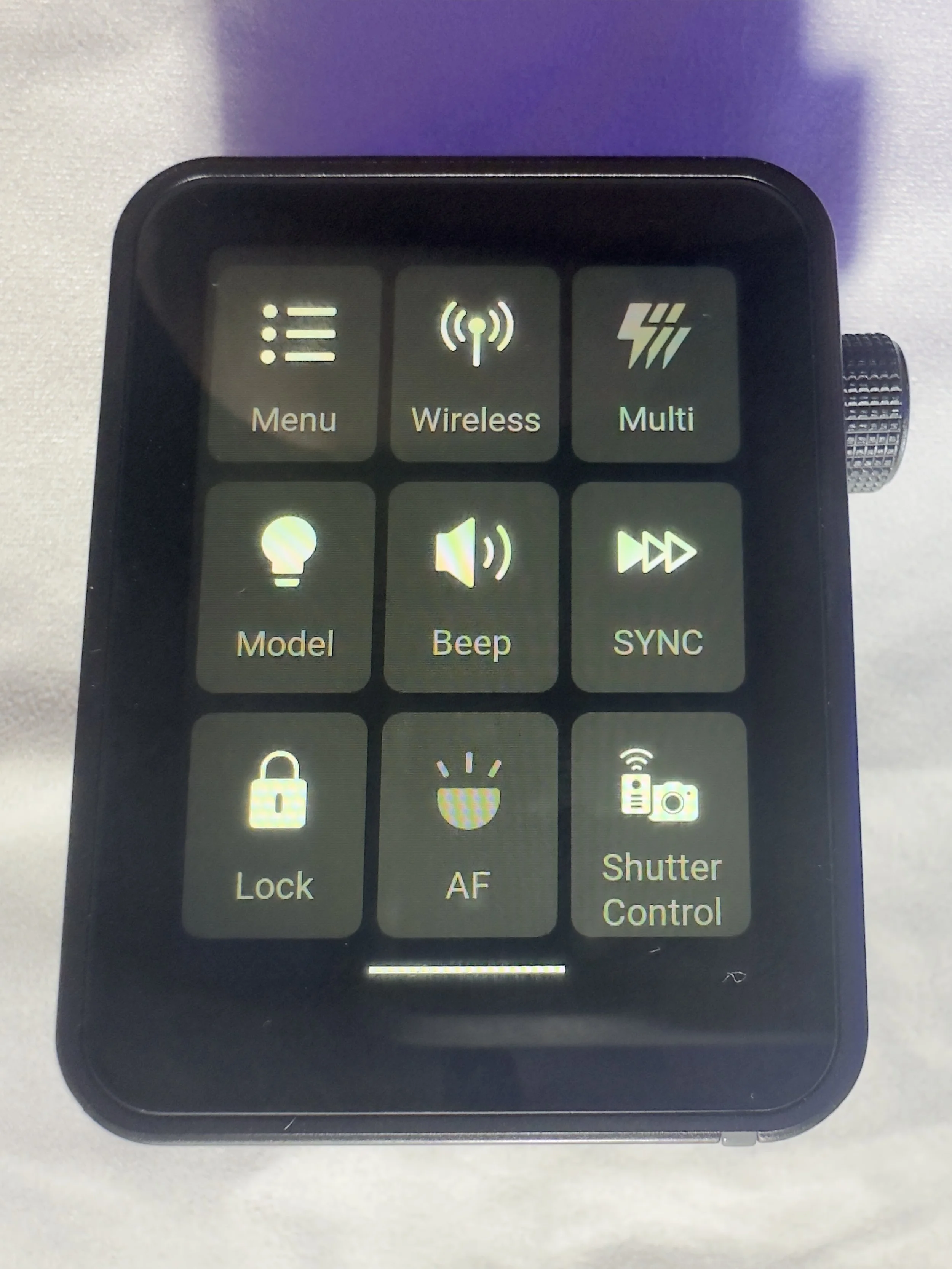
Gear Review: Godox X3 Pro Wireless Touchscreen TTL Flash Trigger.
The Godox X3 Pro is a compact, touchscreen flash trigger designed for Canon photographers who want fast, reliable control over off-camera lighting. In this review, I take a practical look at how the X3 Pro performs in real-world shooting, covering its radio triggering reliability, touchscreen workflow, TTL and High-Speed Sync support, and how it fits into a modern Godox lighting setup. If you’re considering upgrading your flash trigger or moving to a cleaner, more portable lighting workflow, this Godox X3 Pro review breaks down who it’s for, how it performs, and whether it’s worth adding to your kit.
Ahhh, flash triggers! For years (for me at least) these have been unnecessarily difficult to use bits of kit with complicated menus, too many buttons and some of the least intuitive things I have ever had in my photography set-up.
The Godox X3 Pro-C was launched in late 2025, with initial availability starting in September/October 2025 and changed that! It is something that I have been wishing someone would make for a number of years and finally something has come along that ticked a lot of the boxes I was hoping for.
I’ve had a number of different flashes and I still own some of them. One of the first sets was some Neewer off-camera flashes (the catchily titled Neewer NW-562 E-TTL Flash Speedlite), which came with their own triggers and a manual which contained some literal translations which were largely unhelpful. They were a lot of faffing, but once I got some settings dialled in for the transmitter and the receivers, I didn’t change them. I could just about work with the plethora of buttons and dials on the flash to change things like the output power and the zoom, and I did find it handy being able to reposition them. I still have them as they make useful lights that I can hide in scenes to light them more creatively.
I eventually upgraded to some more powerful strobes, this time from Godox and went for the Godox SK400III, which I paired with Godox XPRO-C TTL trigger. This was a real step-up from the previous trigger as now I could set up groups and store some different settings. Again however, I found this really complicated to use. The old style LCD screen was, I found, very confusing, difficult to use and to be quite honest, a bit of a pain. It did however give me some more flexibility and allowed me to do a little bit more. When I say ‘allowed’, what I mean is that I could control the strobes from the trigger rather than having to go and off fiddle with two set of buttons on two different flashes.
More recently, I have taken delivery of the Godox X3 Pro C Wireless Touchscreen TTL Flash Trigger. Yep, you guessed it, I got in the Black Friday sale last year, and I have had a couple of months to play with it before giving you my thoughts. One of my overriding thoughts is that they need to come up with some better names for these things!
This blog contains Amazon affiliate links and I may receive a small kick back if you make a qualifying purchase after you have clicked one of these links. This is a great way to support the blog, so a massive thank you goes to you if you choose to make a purchase, all of the money I make from this goes back into helping me to create reviews for the blog, it’t not a huge amount, but every little helps!
First Impressions:
This is much smaller than previous triggers that I have owned, yet you don’t lose any of the screen real estate that you want with a piece of gear like this. It’s light, which is a real bonus when you’re sticking it on the top of your camera via the hot shoe. One of the other things I like about it is that it has a built in rechargeable batter - HOORAY - no more faffing about with AA batteries which cost a fortune or rechargeable ones that never seem to last very long. The battery is rechargeable via a USB C cable which comes supplied.
It’s a lovely little object to hold, the plastics feel solid and the branding is fairly tame which means it looks quite subtle.
The touchscreen is bright and responsive. It’s also big enough that you’re not forever bumping icons you didn’t mean to and it’s not so sensitive that you’re accidentally changing your settings by just brushing against it.
There are 2 buttons on the right hand side, which give solid feedback when your press them (one of these will test fire the flash and the other is the power/menu button). Finally, on the same side, you have a multifunction wheel, which you can turn to navigate the menus and press to make selections, it has a reassuring click which lets you know you’ve made a selection. This might be handy if you’re working somewhere cold and are wearing gloves, or if you struggle to use your hands to make the changes via the touchscreen.
On the front of the unit there is an autofocus assist beam and at the bottom of it there is mechanical button which retracts a pin on the hot shoe to enable you to release it from the camera when you’re ready to pack down.
It came with about 60% charge already in the battery and to charge it to full took about 45 minutes. I don’t know what the full battery life is, but it’s been enough to get me through a full day’s shooting.
My Experience with The Trigger
I have really enjoyed using it so far. Once I had everything set up (which took no more than a few minutes after I had watched some YouTube videos), I was ready to go and shooting. I had someone booked in for some headshots not long after I took delivery of it and it got me through the whole session with no issues (I did have the old one on standby just incase I ran into any issues), I was able to make range of adjustments which synced to the strobes with no issue.
One thing I really like is that you can scan the 2.4ghz frequencies and the trigger will tell you which channels are the clearest ones for use in the environment you are, and then you can set this on the strobes and the trigger. I use each of my flashes in its own group and I don’t bother with the ID numbers as I am not often working in an environment which requires me to do this. I have however, messed around with creating different groups and using ID numbers for the purpose of this review, and have found that it’s a fairly straightforward process.
There is a slight lag from when you make changes on the trigger to them registering on the flash, whilst this hasn't been an issue for me, it’s something worth knowing. We're talking about delay of less than a second, but I know there are people who aren’t going to be into this.
What other features does it have?
One little ‘'bonus’ feature of this unit is that you can also use it as an intervalometer, but you will need to connect the trigger to the camera with 2.5mm TRS cable (male to male). These are less than a tenner for two if you click the link I have just posted, but a lot of you might find that you already have one of these knocking around at home somewhere, especially if you have purchased flash gear before.
One of the big plusses, for me at least, of this trigger is that it is a radio trigger so this does away with the need for line of sight to enable you to trigger the flash, which gives you some more flexibility on set/location and it saves the need for the use of optical slaves.
Switching between TTL and manual flash is straightforward, which is especially useful when working in changing light conditions.
The updatable firmware is also a huge bonus for lighting setups and products which are constantly evolving, and will reduce the need to keep spending money on buying new gear.
You can also change the trigger distance or range and you have two options here, 0-30 metres and 100m. I have found that when I am shooting in the studio, it’s much more reliable and has fewer misfires when working in the 0-30m setting. I haven’t used it outside yet, so can’t say if it works well up to 100m.
Finally, in the menus there is a function called ‘legacy’ which allows you to turn off all but one of the pins on the hotshot (the centre one), which means that it has greater functionality across a range of older camera bodies. You should be sure to check that your camera is compatible with the unit before you buy it.
Who is this for?
The Godox X3 Pro-C is ideal for photographers who want a compact, modern flash trigger without sacrificing control or reliability. It’s particularly well suited to Canon shooters who regularly work with off-camera flash and want a streamlined, clutter-free setup that travels easily. If you shoot on location, work with multiple light groups, or frequently switch between TTL and manual flash modes, the X3 Pro-C’s touchscreen interface and intuitive layout make lighting adjustments quick and efficient.
It’s also a strong choice for photographers moving away from optical triggering and into a radio-based workflow, offering dependable performance indoors and outdoors without line-of-sight limitations. Those who value portability, a clean camera setup, and fast access to lighting controls will appreciate what the X3 Pro-C offers.
However, photographers who prefer physical dials and buttons, work extensively in cold or wet conditions, or want interchangeable batteries may find a more traditional trigger a better fit.
Where Can I Buy One?
The easiest place to get one of these is on Amazon, where you will find it for around about £88. Make sure that you buy one which is compatible with your camera. There are a number of different versions, so don’t end up with something that you need to return! The ‘C’ in the name of this one stands for Canon, there is an ‘S’ for Sony and so on. They are clearly labelled with the camera brand on Amazon.
Pros and Cons
Pros
Bright touchscreen with intuitive navigation and operation.
Small profile makes it great for travelling and on location marking.
Supports Canon TTL metering and high speed sync
Uses the Godox X system which gives compatibility across a wide range of flashes/strobes
Built in USB C rechargeable battery negates the need for a high pile of AA batteries.
High speed sync speed up to 1/8000 if your camera supports it.
Cons
Touchscreen can be fiddly in cold and wet conditions
Not hot shoe pass through. Once it’s attached, there is no way to connect anything else, which could be a limiting factor in some setups.
More expensive than some other Godox triggers without much development around the core functionality.
Final Thoughts
The Godox X3 Pro-C is a strong choice for Canon photographers who want a modern, streamlined approach to off-camera flash control. It delivers reliable radio triggering, a clean and intuitive touchscreen interface, and a compact design that keeps camera setups lightweight and uncluttered. In real-world use, it offers all the core functionality most photographers need, from multi-group control and TTL support to High-Speed Sync for working in bright or fast-changing light.
While those who prefer physical buttons or interchangeable batteries may gravitate towards more traditional triggers, the X3 Pro-C excels in ease of use, portability and workflow efficiency. For photographers looking to simplify their lighting setup without compromising on control or performance, the Godox X3 Pro-C is a capable and well-designed trigger that fits comfortably into both studio and on-location workflows.
Technical Specifcations
Godox X3 Pro-C (Canon) – Specifications
Quick reference spec sheet
If you’d like to support the blog and help me keep producing Lake District photography content, honest gear reviews and regular website updates, you can do so via my Buy Me a Coffee page. Keeping everything running smoothly takes time, and your support makes a real difference. Thank you.
Gear Review: SmallRig Vibe P96L RGB Video Light
The SmallRig Vibe P96L RGB video light is a compact, pocket-friendly LED that’s ideal for content creators, vloggers and photographers who want reliable on-camera fill light without carrying a full lighting kit. In this review, I’ll cover real-world performance for macro photography, product photography and quick portraits, including colour accuracy, usability, and how well it works as a travel-friendly light. The P96L offers RGB plus adjustable colour temperature (2500–8000K), an OLED display for quick settings checks, and a sturdy aluminium alloy body designed for durability and heat management.
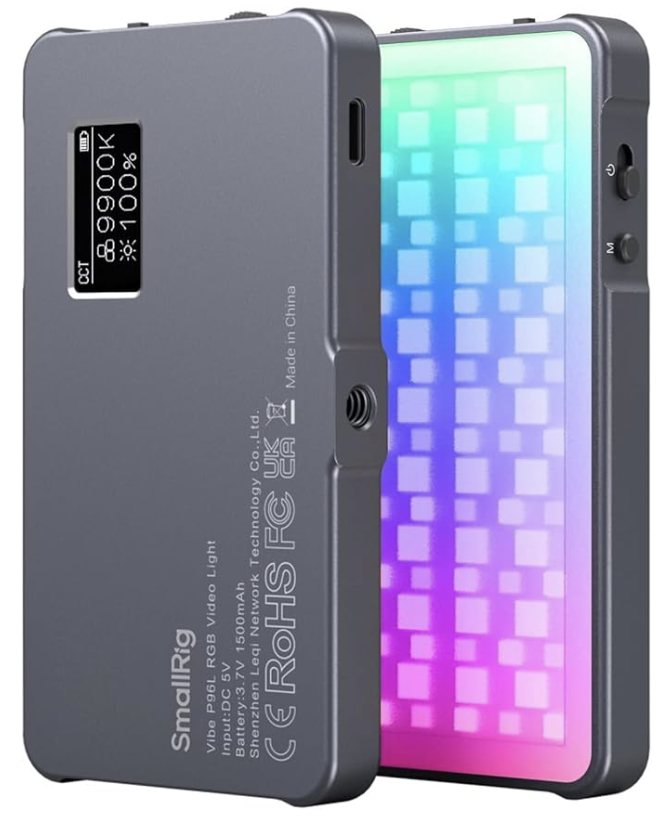
I’m sticking an extra entry in this week, as I wanted to review this light, 2 of which I received as Christmas gifts. These were things that I asked for after having done a bit of research so I had a decent idea of what I was getting and a rough idea of what it would do. This is my quick review after a couple of weeks of using them. I am going to try and keep this fairly short and concise.
This blog contains amazon affiliate links. If you click one of these links and then make a qualifying purchase, I may receive a small kickback - this is at no extra cost to you. This is a great way to support this blog and allows me to do things like creating these reviews.
So let’s jump into this quick review of the (not so) memorably named SmallRig Vibe P96L RGB Video Light.
Why Did I Get Them?
I wanted these not as video lights, which is there inteded purpose, but as small, portable, constant light sources that I could take out with me when I want to get a bit more creative, especially with macrophotography and when I want to use lower apertures, but keep the shutter speed as fast as I can. I don’t think I will use the effect feature that has been designed into these lights, but I will absolutely use the CCT and HSI functions (more on these features below), to creatively light some macro shots and to give myself some more creative flexibility. I have got some Pavotubes, but these are too big to cart around in my bag for occasional use so only really get used in the studio.
What’s in The Box?
This one is straightforward. You get the unit, an instruction leaflet and a charging cable (USB-C).They’re well packaged, and come in a well made Apple-esque box, which gives them plenty of protection on their journey.
First Impressions
The first thing I noticed when I opened the box was the build quality and look of these things. They look great and appear like they’re much expensive than the less-than £40 you have paid for them. I like the tacitly of the admittedly quite small buttons, and this will be beneficial when you’re working low light but could be problematic if you’re wearing gloves.
Interestingly, even though I got two of them, the amount of battery in each was vastly different. One was over 80% charged, whereas the other one almost completely flat. Don’t expect that you’re going to be able use it straight out of the box without having to charge it first.
Build Quality
These are really well made pieces of equipment. They are made out of an aluminium alloy which feels really premium, the front of them is covered in plastic which is textured and creates a nice bit of diffusion so you’re not just battling with bare LEDs. They measure around 108x60x11mm and weigh less than 120g, which means that they don’t take up much room in your bag and they’re not too heavy to carry around with you. It also means that they are small enough to hold in your hand but that they have a wide enough “base” to stand up on their own. They do have a 1/4” threaded tripod mount (female) if you want to attach them to anything, but if you want to mount them to your camera’s hot-shoe, you’re going to need to invest in something like the SMALLRIG Tilting Mount with Cold Shoe Adapter - I have a couple of these and they are great little bits of gear which will do the job of holding this light to your camera nicely without adding too much extra weight to your setup.
They aren’t weather sealed, so if you’re using them in poor conditions, or expect to be using them a lot in the rain, then look for a different, weather sealed option or plan ahead to make sure that you don’t get them soaked.
Ease of Use
These are really easy to use. The controls are simple, the LED display on the rear of the unit is clear, bright and easy to read. The buttons and dials on the top and side of the light are really tactile, which makes them easy to use when you’re working with limited light but might be a bit more of a challenge in cold weather or if you’re wearing gloves.
There is a mode switch on the top which cycle through the three modes, which are CCT, HSI and Effect.
CCT is Correlated Colour Temperature. The light has a range of around 2500 to 8000k and you can adjust the brightness and temperature this feature by using the wheels on the side of the unit. This will give you clean, accurate light. They are rated at CRI 96 so not too shabby in this regard, especially at this price point.
HSI is Hue, Saturation and Intensity. You can change the hue and saturation using the top wheel, which is “pressable”. Pressing the wheel in toggles between hue and saturation and you can adjust this by nudging the wheel up and down. Intensity (or brightness) is controlled using the bottom wheel. This will give you much more creative control.
Effect is exactly that. These are a group of pre-programmed settings which will create effects such the light from a TV, police, fire and ambulance lights and strobe effects. These aren’t something that I will use much as photographer, but those of you who shoot video may be able to find a use case for this. This will give you creativity and atmosphere.
These are all pretty intuitive and won’t take much learning, so ease of use gets a big thumbs up!
Battery
These come with a built-in rechargeable 1500 mAh lithium-ion battery, which charges fairly quickly and carries a decent amount of power. You can charge these with the supplied USB either hooked up to your computer or from a battery pack if you think you are going to run the battery down during a full day of shooting. I’ve been out with these for a full day and haven’t run them to empty, but this is going to be dependent on a number of variables such as the ambient temperature (they’ll not last as long in cold temperatures), how much your using them and what brightness you are using them at.
Who is This For?
The SmallRig Vibe P96L is best suited to photographers who need a compact, colour-accurate LED light for close-range work and creative lighting control. It’s a strong fit for product photography, still life, behind-the-scenes content and studio desk setups, where accurate colour rendering and quick adjustment matter more than raw power. With a CRI of 96, it’s particularly useful for photographers who want consistent, reliable colour when shooting details, textures or reflective surfaces. Its small size and built-in battery also make it a practical option for location work, travel photography and content creation, where portability and fast setup are essential. While it’s not designed to light large scenes or act as a primary key light, it works very well as a fill light, accent light or creative colour source for photographers looking to add flexibility to a lightweight setup.
Where Can I Buy Them?
I got mine from Amazon , and they cost £39.90. They are sold at wide range of photography retailers, so shop around for the best price.
Pros and Cons
Pros:
High colour accuracy (CRI 96) – produces natural, reliable colour, particularly useful for product and still life photography
Wide colour temperature range (2500K–8000K) – easy to match daylight, tungsten or mixed lighting conditions
Full RGB control – useful for creative accents, backgrounds and experimental lighting
Compact and lightweight – ideal for desk setups, travel and location work
Built-in rechargeable battery – no need for external power; convenient for portable use
Simple, intuitive controls – quick adjustments without breaking workflow
Multiple mounting options – 1/4″ thread and cold shoe compatibility increase flexibility
Good value for money – strong feature set for its size and price point
Cons:
Limited output power – not suitable as a primary key light or for lighting large scenes
Best suited to close-range use – effectiveness drops quickly with distance
Small control buttons – can be fiddly when working quickly or with gloves outdoors
RGB effects more niche for photography – some modes are more useful for video than stills
No weather sealing – care needed when using outdoors in poor conditions
Conclusion
The SmallRig Vibe P96L isn’t designed to replace a full lighting setup, but that isn’t really the point. Where it works best is as a compact, dependable and colour-accurate LED light that earns its place in a photographer’s everyday kit. The high CRI rating, wide colour temperature range and RGB control make it genuinely useful for product photography, still life work and close-range creative lighting, while its small size and built-in battery keep it practical for desk setups and location use.
If you regularly need a portable fill light, accent light or creative colour source, the P96L offers a strong balance of control, build quality and value. It’s not the light you’d reach for to illuminate a large scene, but for photographers who want flexibility without adding bulk, it’s a well-judged and versatile option that punches above its size.
If you’d like to support the blog and help me keep producing Lake District photography content, honest gear reviews and regular website updates, you can do so via my Buy Me a Coffee page. Keeping everything running smoothly takes time, and your support makes a real difference. Thank you.
Gear Review: Canon EF 2x Teleconverter MKII
Are you looking for extra reach from your current Canon lenses without investing in a costly super-telephoto? The Canon EF 2x Extender (teleconverter) could be the answer. In this review, I explore the pros and cons of the Canon 2x Extender, how it affects image quality, aperture, and autofocus, and whether it’s worth adding to your kit for wildlife, sports, or landscape photography.
This is a review I hadn’t planned on writing as this wasn’t a piece of kit I was planning on buying! I ended up with one of these teleconverters as at the same time I was buying my 16-35mm lens, I was also looking for a telephoto zoom lens, with the Sigma 150-600mm f/5.6 being at the top of my list.
Some quick maths made me rethink this - I knew I REALLY wanted the 16-35mm f/4L, but getting the 150-600 at the same time, financially, was going to be a bit of a push and after some consideration, I decided to plump for the teleconverter and see how I got on with it. On the front of my Canon 80D which has a crop sensor, paired with my 70-200 f/4L, I can expect to have a focal length around 224-600. (Here’s the maths… (70x2)x1.6 = 224 and (2—x2)x1.6 = 600)).
We can agree this is a whole lot of reach, which is going to be great for a having a go at some wildlife which has previously been out of the range of my 70-200. I will also be able to pick out things in a landscape which have previously been a mere pipe dream and hopefully bag some great shots of the low flying jets as they pass through The Lake District Valleys.
I got mine from MPB.COM, and it’s in “Like new” condition. It set me back £198.55, which is great compared to the in excess of £800 I was going to have shell out for the Sigma. Yes, I have had to sacrifice some reach, (on a crop sensor, 800mm looks like 960mm), but I want to see how this solution works first.
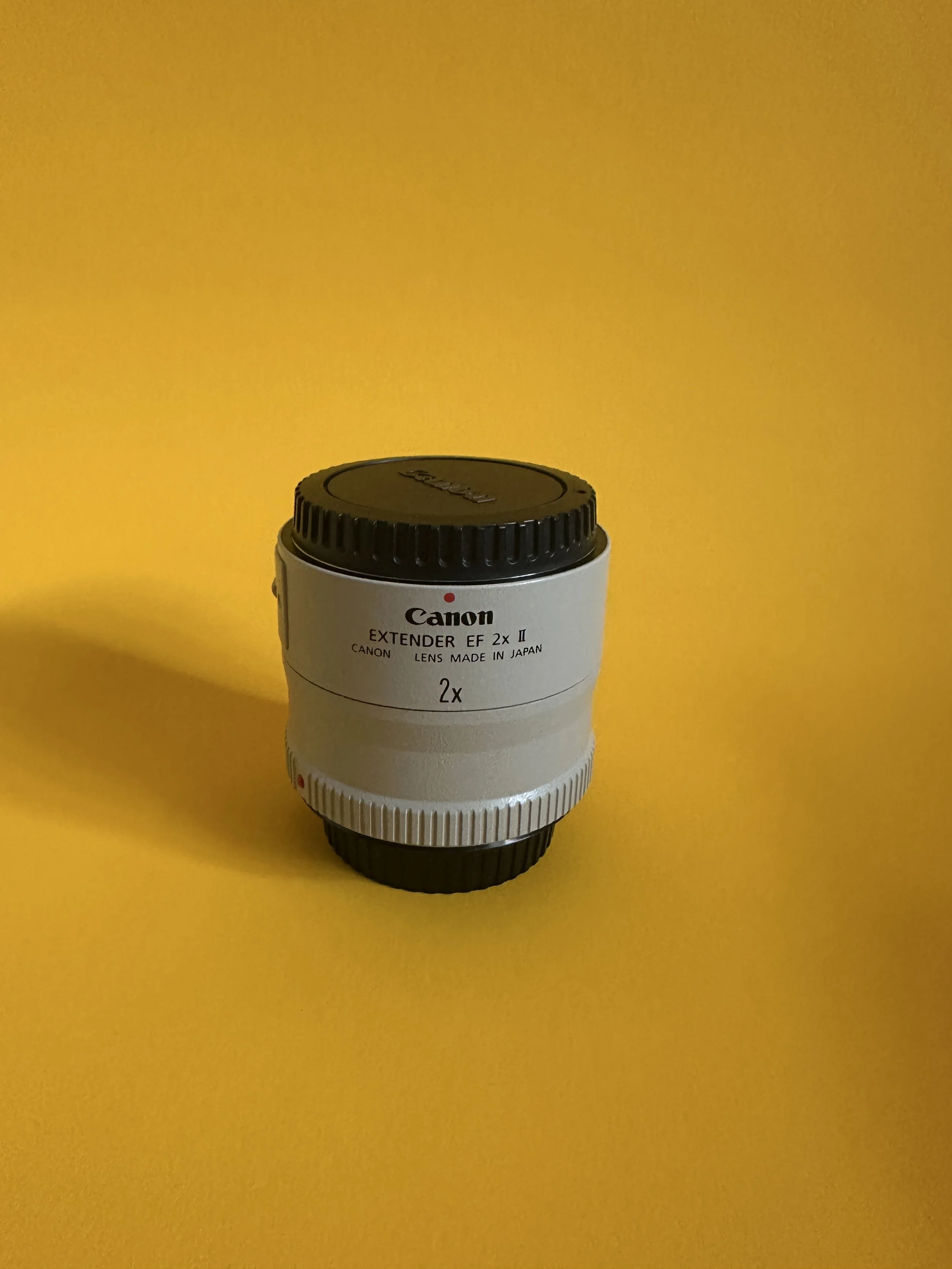
This isn’t the best looking piece of kit; it’s the same off white colour we expect to see long Canon lenses come in and without the lens caps on, it’s a truly odd looking accessory.
Mine has the EF mounting system, (remember, I am still shooting with a DSLR!), and the extender comes with a solid, metal mount which firmly attaches it to the front of the camera.
There is a trade-off to all of this extra reach, namely, attaching your lens to an extender reduces your maximum aperture by 2 stops. So in my case, the max aperture my f/4 lens is going to have is f/8. I don’t mind this for two reasons - 1) I am mainly going to be using this lens in brighter conditions, so will have plenty of light to work with and 2) This lens is really sharp at f/8 so this should translate to better sharpness in the images I produce. I will share some sample images throughout this blog so you can make up your own minds!
How does it work?
Extenders, which are also referred to as teleconverters, work by increasing the magnification of your lens, and then projecting this onto your sensor. A really crude way to think of is it’s like a magnifying glass for your lens.
They come in a limited range of magnifications, usually 1.4x and 2x, though I have seen Nikon ones which have a magnification factor of 1.7x. As you’ve probably worked out, the numbers are the factors your magnification is increased by, so a 100mm lens with a 1.4x teleconverter, will have a theoretical reach of 140mm, the same lens with a 2x teleconverter will have a reach of 200mm and so on. If you have a zoom lens then the whole range is magnified by the same factor. You get the idea.
These pieces of kit however, are not selective in what the magnify. They will magnify everything in your image, which includes any grain or ISO ‘noise’ captured in your image.
What should I consider?
You need to consider what the trade-offs are. Essentially, you will be decreasing your maximum aperture and you are going to sacrifice a bit of sharpness in your final images.
Because you are effectively losing light by having the smaller aperture, you are going to have to compensate by increasing your shutter speed or ISO. You’ll need to bear this in mind when setting up your shots and consider the exposure triangle to make sure you end up with an image, which is in exposure terms, balanced. You can read about this in my blog “A Beginner’s Guide to The Exposure Triangle”.
You might lose some auto-focus functionality by attaching the extender. This so far hasn’t been an issue for me, as I have been taking pictures of landscapes in which the subject is often the light hitting the side of a mountain. Mountain’s aren’t known for being fast moving (if one does start moving quickly, then I would suggest you do the same!), but if you’re using it to shoot sport or wildlife then the amount of images you get which are ‘keepers’ will probably see a reduction compared to shots taken without the teleconverter attached.
The image on the right was taken at 400mm (640mm on a crop sensor), has had noise reduction applied alongside exposure adjustments, masking and colour adjustments. Single exposure, not focused stacked —>
Finally, you should think about what the kit is doing - it is magnifying everything your lens sees and does, so if you have a lens which suffers from, for example, chromatic aberration, this is also going to be magnified and on top this, you are going to lose some contrast as well.
First Impressions of the Canon 2x extender II.
I’ve already taken this out and stretched its legs for half an hour, the first impressions are good but I have identified a couple of drawbacks, but at this stage, nothing bad enough for me to want to return it.
I also got lucky when I was out shooting and instead of just landscapes, I was fortunate enough to see an A400 Atlas flying low level through the Leven Estuary at Greenodd, presumably on it’s way to LFA 17 at Windermere.
One of the first things I noticed was just how much more of a challenge it is to find things in the viewfinder. Especially a moving object like the A400 I just mentioned. It took me a moment to locate it and then to lock focus. I eventually succeeded and have a bagged a couple of shots I am happy with, you can see one of them on the left.
Because it was a bright evening, I didn’t need to add lots of ISO to compensate for the lack of light in now my now f/8 lens. The shot I have ended up with is sharp and because it was shot at ISO 100, it isn’t loaded with image-ruining noise.
The second shoot I went on, saw me heading over to Walney Island for sunset on a very grey evening. Ambient light was not as abundant as I might have liked it to be. Plus, it was sunset, so I was losing light by the second. This resulted in me having to bump up the ISO on my camera to 400.
When I got back to the studio, I did notice the images I had shot using the teleconverter were suffering from more noise than the same images shot on their “native” counterparts. I will point out this wasn’t a lot of noise, but was still more than I could see on the non-extender version.
Prior to the advent of effective noise reduction software/algorithms, this would have been much more of a problem than it is in today’s post processing world. I used Lightroom’s noise reduction panel to get rid of some of this and it did a pretty good job. All of the above being said, the loss of saturation, whilst not catastrophic, did (in my opinion) make the raw files harder for me to edit effectively and I felt like I had lost some of the flexibility I would normally have.
Something else I noticed was having this lens on my camera made it much heavier, so much so, the ball-head on my tripod was really struggling - I would get a shot framed up and then tighten up the ball head, all for it to “drop” when I wasn’t supporting the weight of the camera/lens/extender combination. I have to admit, this could also be a limitation of my tripod and an unfair criticism of the extender, but I had no issues when I was using my 16-35mm or my 24-105. I am going to try a different ball-head before I reach the decision about how often I might want to shoot with it on a tripod, but if you’re using a longer lens which comes supplied with a collar, then using this is a must to help you to balance the weight of the camera against the lens/extender combination. I will update this entry if I manage to solve the problem.
Who is the Canon EF 2 extender for?
I would recommend this to anyone who is wanting to try shooting at much longer focal lengths, but who isn’t ready to spend the money on a good quality super-telephoto lens just yet. There is a big saving to be made if you buy second hand and it can be a good way into trying your hand at genres such as sports and wildlife.
Another thing I would say is this lens is for someone who already owns some good quality glass to put in front of it; if you’re shooting with a lens which you know has some serious flaws then the teleconverter isn’t just going to make your lens longer, it is also going to amplify the imperfections in your lens. These are going to be painfully obvious to whoever is looking at your image. I am lucky to have a full set of Canon L Series lenses which are really high quality, but I also know the characteristics of each of them meaning I know what to look out for when using the teleconverter and this can help me to mitigate any issues before they have a chance to become a problem in the edit.
Pros and Cons
Pros:
Lightweight
Small(ish) form factor means it’s likely to fit somewhere in your bag.
A cost effective option for people who want to try shooting at longer lengths but who don’t want to shell out hundreds of pounds on a huge lens.
On crop sensors, you end up with “extra” reach owing to your sensor’s crop factor.
Cons:
Loss of stops of light owing to the max aperture of the lens caused by adding the extender.
Amplifies everything, including grain and chromatic aberration.
Some loss of contrast and sharpness in final images.
Summary
If you’re considering making your first foray into genres which require more reach, but don’t have the money to buy the long lens then this could potentially be a safe middle ground. If you’re really into low light photography then you might find the reduction in aperture to (in my case) f/8 to be too constraining. If you’re considering the purchase, then it’s helpful to start by having good lenses which you really understand as any imperfections created by the lens are going to be amplified by the converter.
I think this has been a good purchase for me, it’s opened a world of new compositions, particularly when I want to shoot things I can’t get close enough to in order to create my desired composition. It has given me some more flexibility, perhaps enough to get 2 or 3 extra compositions per location I visit, but I do think this means sacrificing some sharpness and saturation, but not so much to make the ‘project’ a write off.
Will I use this forever instead of buying a dedicated super-telephoto zoom lens (or if I’m feeling flush, a prime - £10,000 for the Canon EF 400mm f/2.8 prime anyone?), probably not. But I am happy enough with the results for the time being which means I am going to have a lot of fun creating something different to my normal shots for many months to come!